TypographyRoundup
Best Typography Tools for Designers: Finding, Testing and Licensing Type
Typography decisions shape almost every design. These tools help you find type, test it in context, understand its licence and make adjustments that a basic editor cannot.
- Author
- GraphiSphere Editorial Team
- Published
- Updated
- Reading time
- 3 min read
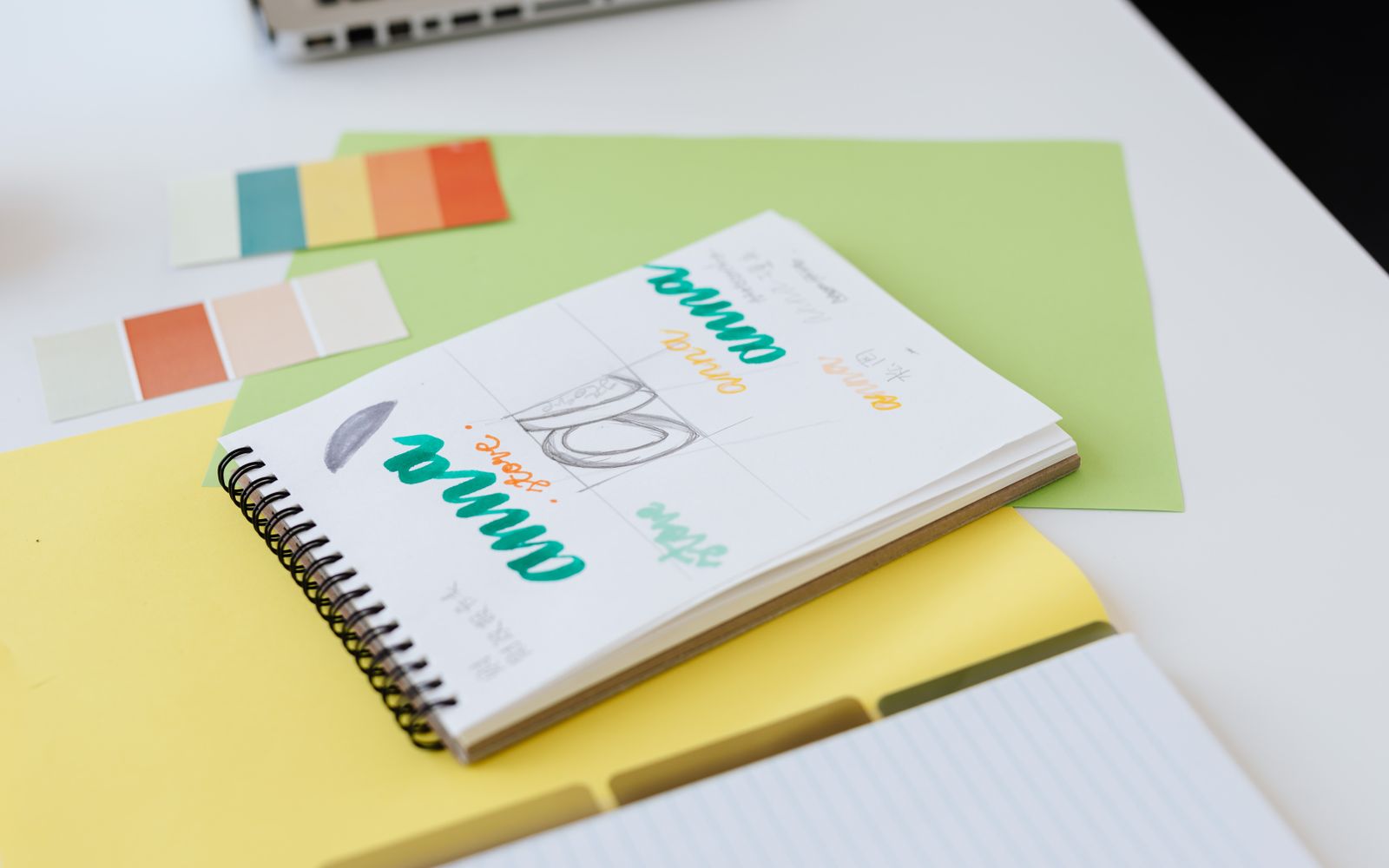
Type is the most visible part of most design work and the part most often done carelessly. Choosing a font is only the start. You also need to check whether it is licensed for your use, whether it works at the sizes you need, and whether it has the characters your content requires. The tools in this roundup help with each of those steps.
How we chose these: each pick is included because it is widely used for the job described, and the assessment draws on its public feature set, pricing structure and documented capabilities. These are editorial judgements. We have not tested every product here in the same way, and we say where a pick is only listed in our directory.
Finding fonts
Google Fonts
A large free library of open-licence fonts, with a clear preview tool and web embedding. It is a dependable source for web and many print projects. Check the licence on each family, since the Open Font License covers most but not all of the library’s use cases.
Adobe Fonts
A licensed library included in eligible Creative Cloud plans. It integrates directly with Adobe’s apps, which makes it convenient for Creative Cloud users. Check the terms for web and app embedding, and confirm what your plan covers.
Identifying and testing type
Identifying a font from a photograph is a common need. Services such as WhatTheFont, operated by MyFonts, can match a font from an uploaded image. Test any font in your actual design at real sizes, on the background it will sit on, before deciding. A font that looks elegant in a specimen can fail at small sizes or in dense text.
Editing and making fonts
Glyphs
A professional font editor for macOS, used for building and modifying typefaces. It suits type designers and designers who need custom glyphs or small alterations to a licensed font, subject to the licence terms.
FontForge
A free, open-source font editor for building and editing fonts. It has a steeper learning curve than commercial tools and is a useful option for learning type design.
Inspiration
Typewolf collects typography examples from real websites and identifies the fonts in use, which is useful for studying how type works in context. Use it to learn pairings and hierarchy rather than to copy a specific look.
Summary table
Typography tools by task
| Task | Tool | Note |
|---|---|---|
| Free open-licence fonts | Google Fonts | Check each family’s licence |
| Licensed fonts in Adobe apps | Adobe Fonts | Available in eligible plans |
| Identifying a font | WhatTheFont | Works best with clear images |
| Modifying or creating type | Glyphs or FontForge | Check licence before altering fonts |
| Studying type in context | Typewolf | Inspiration, not a source of fonts |
For a broader list of free resources, including font sources, see our resources page. For how type fits into a repeatable process, read the professional design workflow tutorial.
Related reading
Illustration
Adobe Illustrator Review: The Vector Standard, Slowed by Its Own Weight3 min read
Creative Workflows
How to Build a Professional Design Workflow That Survives Real Deadlines4 min read
Graphic Design
Best Graphic Design Software in 2026, Grouped by the Work You Do3 min read