Video EditingGuide
How to Choose the Right Video Editing Software for the Video You Make
Choosing a video editor is less about feature lists and more about project length, team size, delivery format and how much colour and audio work you do. A short test will tell you more than any review.
- Author
- GraphiSphere Editorial Team
- Published
- Updated
- Reading time
- 4 min read
Contents
- Step 1: Start with the longest project you actually make
- Step 2: Decide where colour and audio sit in your process
- Step 3: Map your collaborators and handoffs
- Step 4: Test your hardware
- Step 5: Run a one-hour test project
- Step 6: Decide on total cost, not the sticker price
- A reasonable starting point
- Related reading
Video editors have become so capable that the hard question is no longer whether a tool can do the job. Almost every serious editor can cut a film, colour it and deliver it. The harder question is which tool will fit the way you work, the size of the projects you take on and the people you need to share them with. This guide offers a way to answer that before you commit money or months of learning.
Step 1: Start with the longest project you actually make
Choose the longest, most complex video you have made or expect to make in the next year. A thirty-second vertical clip has very different demands from a forty-minute interview with four camera angles. If your longest project is short, a fast mobile-first editor may be enough. If you make long, multi-angle or multi-track work, you need an editor that handles those cleanly from the start, because switching later is expensive.
Step 2: Decide where colour and audio sit in your process
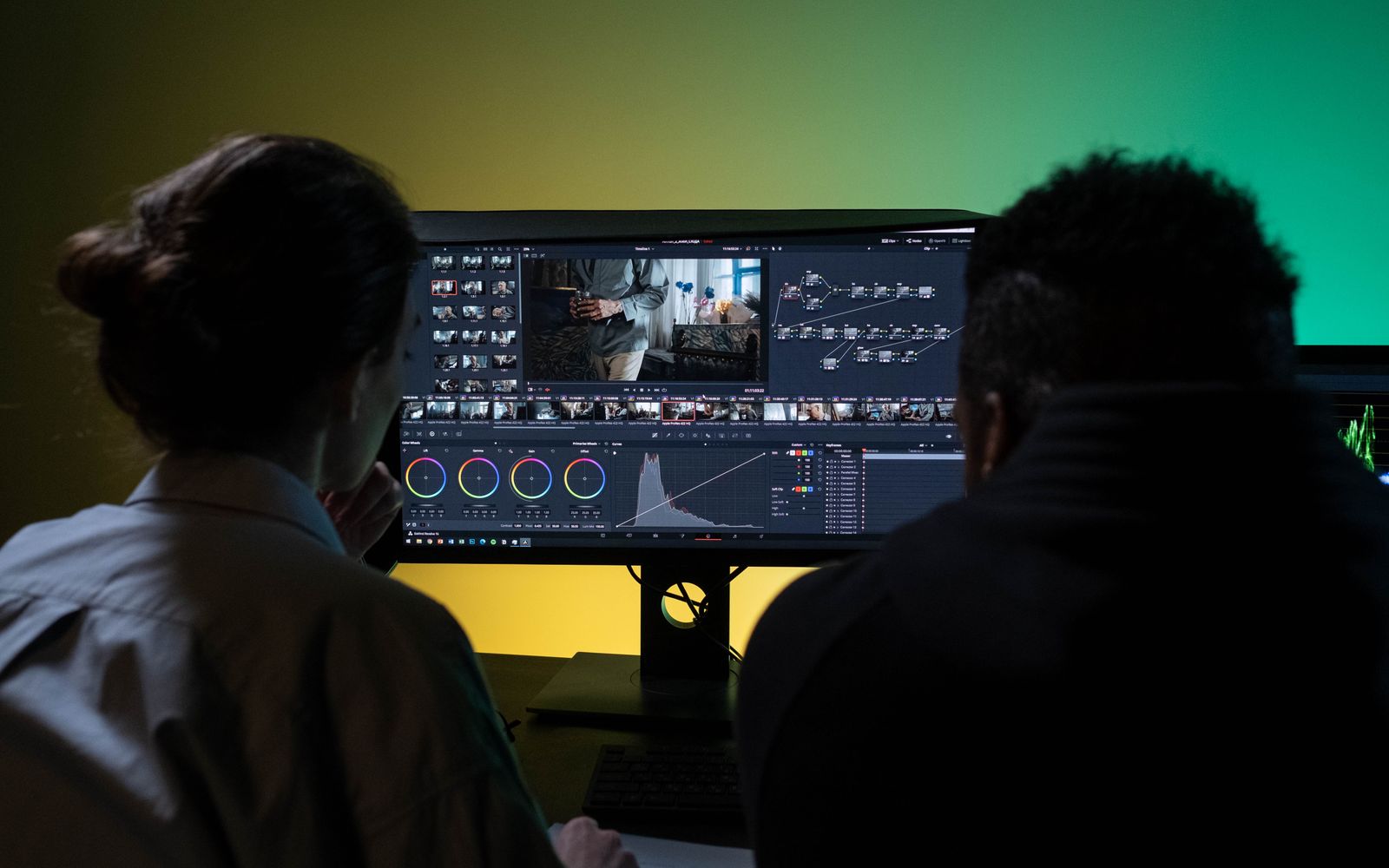
Colour and audio are the two areas where editors differ most. If you grade footage regularly, a tool with a strong dedicated colour environment will save time and improve results. If you only need basic correction, most professional editors are sufficient. The same logic applies to audio. Dialogue cleanup, music ducking and loudness targets matter for almost every project, while detailed mixing matters only for specific kinds of work.
- Colour-led work: prioritise a dedicated grading environment and reliable scopes.
- Dialogue-led work: prioritise audio cleanup, captioning and transcript-based editing.
- Motion-led work: check how the editor connects to your motion graphics tool.
- Social-first work: check caption tools, templates and mobile export.
Step 3: Map your collaborators and handoffs
Video is rarely a solo process. Clients review cuts. Colourists grade. Sound designers mix. Each handoff needs a format that the next person can open. Ask who you work with and what they use. If your team lives inside one ecosystem, that ecosystem may decide your choice. If you work alone, handoffs matter less, but client review still needs a clean export and a reliable way to collect feedback.
Step 4: Test your hardware
Editing performance depends on your processor, graphics card, memory and storage. Test the editor on your own machine with footage that resembles your real work. Watch for stutter during playback, the time it takes to render effects and how quickly the media cache fills. A tool that runs well on a powerful desktop can struggle on a laptop, and a tool that is light on resources may lack the depth you need.
Step 5: Run a one-hour test project
Import three to five clips of your own footage. Cut a short sequence with one music bed and one voiceover. Add a basic colour correction, a title, a transition and captions. Export the sequence in the format your clients use, then watch it on a different device. Time each step and note the places where you hesitated. The test does not need to be polished. It needs to show you how the editor feels when you use it for real.
Matching editors to typical projects
| Typical project | Usually a good fit | Check before buying |
|---|---|---|
| Vertical social clips | Mobile-first editors such as CapCut | Terms and data handling for client material |
| Corporate and training video | Premiere Pro or DaVinci Resolve | Team handoffs and audio standards |
| Colour-critical commercial work | DaVinci Resolve | GPU requirements and the learning curve |
| Multi-camera events | Premiere Pro or DaVinci Resolve | Multi-cam workflow and media management |
| Motion-heavy explainer videos | Premiere Pro with After Effects | Motion graphics tool compatibility |
Step 6: Decide on total cost, not the sticker price
Compare the subscription or purchase price, the cost of any storage or plug-ins you need, the hardware you may have to buy and the learning time. A free editor that takes you months to learn may be more expensive in practice than a paid one you already know. Equally, a subscription you do not use every week may be poor value. Write down the total cost over a year for each option you are considering.
A reasonable starting point
If you are new to editing and make short social video, start with a mobile-first editor and learn the basics of story and pacing. If you want to make longer work and do not yet have a team, a free professional editor is a strong start. If you already work in Adobe’s ecosystem, Premiere Pro is the natural choice. Whatever you pick, spend a few weeks on one editor before comparing again.
Related reading
For detailed comparisons, read our DaVinci Resolve vs Premiere Pro and Premiere Pro vs CapCut comparisons. Our Premiere Pro review and CapCut review cover the two most-discussed options in more depth.
Related reading
Video Editing
DaVinci Resolve vs Premiere Pro: Colour, Cost and Ecosystem4 min read
Video Editing
Premiere Pro vs CapCut: Long-Form Editing or Fast Short Video?4 min read
Video Editing
Best Video Editing Software: Professional, Free and Short-Form Options3 min read
Video Editing
Best AI Video Editing Tools: Transcription, Captions and Generative Extras3 min read